正文摘要:
《VSCodium》核心主題 快速閱讀精華
🚀 開源編輯器首選:
完全免費開源,無微軟追蹤,隱私安全有保障! 輕量快速,支援 Windows、Linux、macOS 跨平臺使用。 內建語法高亮、程式碼自動完成、Git 版本控制,功能超齊全。 海量擴充套件(插件)任你裝,打造個人化開發環境。 簡單幾步設定,就能切換成熟悉的繁體中文介面。
.article-toc { border: 1px solid #ddd; padding: 15px; background: #f9f9f9; border-radius: 6px; margin: 20px 0; width: 90%;}.article-toc br { display: none;}.toc-title { /* --- 以下是合併進來的 H2 樣式 --- */ font-size: 1.25em; /* 125% */ border-left: 5px solid #2A98DA; border-radius: 2px; padding: 5px 0px 5px 10px; font-weight: bold; margin: 0 0 15px 0; /* 調整了 margin,只留下方 15px */ color: #333; line-height: 1.5; background-color: #f8f8f8; /* --- 樣式合併結束 --- */}.toc-list { list-style: none; padding-left: 0;}.toc-list li { margin: 8px 0;}.toc-list a { color: #2A98DA; text-decoration: none;}.toc-list a:hover { text-decoration: underline;}.back-to-top { display: block; margin-top: 10px; font-size: 0.9em; color: #666;}本文章目錄
軟體規格資訊document.currentScript.previousElementSibling.href = location.href.split('#')[0] + '#info';
軟體截圖document.currentScript.previousElementSibling.href = location.href.split('#')[0] + '#screenshot';
軟體詳細介紹與中文設定教學document.currentScript.previousElementSibling.href = location.href.split('#')[0] + '#intro';
常見問題Q&Adocument.currentScript.previousElementSibling.href = location.href.split('#')[0] + '#faq';
附件下載 🔽document.currentScript.previousElementSibling.href = location.href.split('#')[0] + '#download';
【語 言】:支援多國語言(含繁體中文)
【軟體名稱】:VSCodium (開源程式碼編輯器)
【版本資訊】:v1.110.01571
【軟體大小】:請參照下載檔案大小
【更新日期】:資料庫未提供
【使用權限】:免費開源綠色版
【系統支持】:Windows / Linux / macOS
【軟體介紹】:
VSCodium 詳細介紹與中文設定教學
VSCodium 是一款由社羣驅動的免費開源程式碼編輯器,它和 Visual Studio Code (VS Code) 非常相似,但最大的不同在於它移除了所有微軟的遙測與資料收集機制,讓你寫程式時更能保障隱私安全。它的原始碼完全公開在 GitHub 上,任何人都可以檢視、修改或自行建構。
主要功能特色
想要知道如何安裝 VSCodium 並發揮它的最大效用嗎?以下列出它的核心功能:
1. 智慧編碼輔助: 支援多種程式語言的語法高亮顯示,並提供智慧型程式碼自動完成功能,能大幅提升你的編寫效率。
2. 整合除錯與版本控制: 內建強大的除錯工具,幫你快速找出程式中的臭蟲。同時也完美整合 Git,讓你輕鬆管理程式碼版本。
3. 高度可自訂化: 透過豐富的擴充套件市集,你可以安裝各種外掛來增加新功能。此外,還能自訂佈景主題、快速鍵,打造最順手的操作環境。
4. 輕量跨平臺: 軟體本身非常輕量,啟動速度快,而且可以在 Windows、Linux、macOS 等多個作業系統上運行。
步驟心得分享:設定繁體中文介面
VSCodium 預設可能不是中文,別擔心,跟著以下步驟就能快速完成中文設定:
1. 開啟 VSCodium。
2. 按下鍵盤快速鍵 `Ctrl+Shift+X` 開啟擴充套件商店。
3. 在搜尋欄輸入「Chinese」,找到中文語言套件並點擊「安裝」。
4. 安裝完成後,按下 `Ctrl+Shift+P` 開啟命令傷害防禦。
5. 輸入「Configure Display Language」並選擇該選項。
6. 在語言列表中選擇「中文(繁體)」或「中文(簡體)」。
7. 重新啟動 VSCodium,介面就會切換成中文啦!
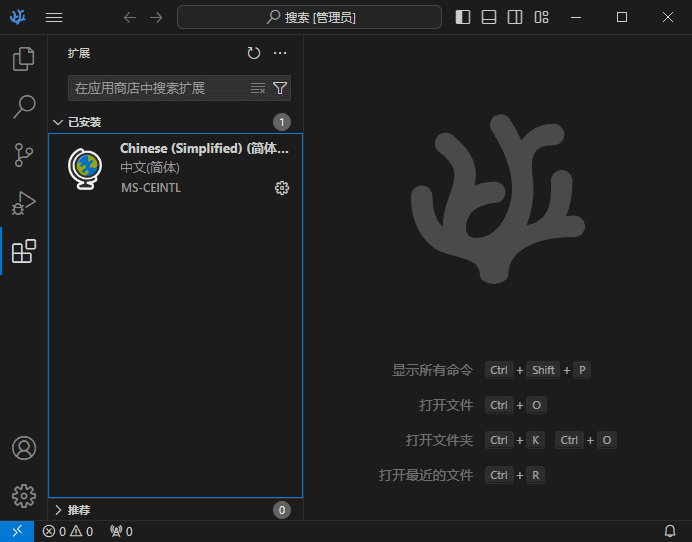
【軟體截圖】:
👉 GM後台版 遊戲 推薦 ⬇️⬇️⬇️ 快速玩各種二次元動漫手遊app
常見問題Q&A
Q:VSCodium 和 Visual Studio Code (VS Code) 有什麼不同?
A:兩者介面與核心功能幾乎相同。主要差異在於 VSCodium 移除了 VS Code 中微軟的專有程式碼、品牌標識以及所有遙測與資料收集功能,是一個更注重隱私與開源純淨度的版本。
Q:VSCodium 是免費的嗎?可以商用嗎?
A:是的,VSCodium 是完全免費且開源的軟體,遵循 MIT 授權條款,個人或商業使用皆可。
Q:VSCodium 的插件可以和 VS Code 通用嗎?
A:大部分 VS Code 市集上的擴充套件都可以在 VSCodium 上安裝使用,相容性非常高。
以下廣告滑動後還有帖子內容var custom_call_MIR = function (params) {if ( params === null || params.hasAd === false ) {var divRowSide;for (let index = 0; index < ONEADs.length; index++) {if (ONEADs[index].pub.player_mode === "mobile-inread") {divRowSide = ONEADs[index].pub.slotobj;}}var ins = document.createElement('ins');ins.className = 'clickforceads';ins.setAttribute('style', 'display:inline-block;');ins.setAttribute('data-ad-zone', '18264');divRowSide.appendChild(ins);var js = document.createElement('script');js.async = true;js.type = 'text/javascript';js.setAttribute('src', '//cdn.holmesmind.com/js/init.js');js.onload = function(){console.log('[ONEAD MIR] ClickForce Loaded');};divRowSide.appendChild(js);}};var _ONEAD = {};_ONEAD.pub = {};_ONEAD.pub.slotobj = document.getElementById("oneadMIRDFPTag");_ONEAD.pub.slots = ["div-onead-ad"];_ONEAD.pub.uid = "1000509";_ONEAD.pub.external_url = "https://onead.onevision.com.tw/";_ONEAD.pub.scopes = ["spotbuy", "speed"];_ONEAD.pub.player_mode_div = "div-onead-ad";_ONEAD.pub.player_mode = "mobile-inread";_ONEAD.pub.queryAdCallback = custom_call_MIR;var ONEAD_pubs = ONEAD_pubs || [];ONEAD_pubs.push(_ONEAD);var truvidScript = document.createElement('script'); truvidScript.async = true; truvidScript.setAttribute('data-cfasync','false'); truvidScript.type = 'text/javascript'; truvidScript.src = '//stg.truvidplayer.com/index.php?sub_user_id=597&widget_id=3309&playlist_id=2381&m=a&cb=' + (Math.random() * 10000000000000000); var currentScript = document.currentScript || document.scripts[document.scripts.length - 1]; currentScript.parentNode.insertBefore(truvidScript, currentScript.nextSibling);
【附件下載】:
VSCodium v1.110.01571 中文綠色版 (夸克雲)
VSCodium v1.110.01571 中文綠色版 (城通盤)
VSCodium v1.110.01571 中文綠色版 (百度雲)
VSCodium v1.110.01571 中文綠色版 (藍奏雲)
藍奏地址打不開教學:lanzoul 改成lanzoux 就是把l替換成m或者w 即可正常訪問《123雲盤》免中國電話免註冊下載 APP安裝、免會員VIP高速下載BUG利用、檔案管理完整教學
VSCodium v1.110.01571 中文綠色版 (123盤)



 組圖開啟中,請稍候......
 收藏
收藏
